This document provides comprehensive guidance on handling returns, post-sale discounts, and double payments of VAT for IOSS in Shopify. Principles explained in this section also apply to Union OSS VAT scheme and UK low value consignment sales
Table of contents
-
1.1. Making a simple return
1.2. Making an exchange
- Post-Sale Discount Handling
- Handling Double Payment of IOSS VAT
1. Return and Exchange Handling
EAS closely follows changes of returns procedures implemented in Shopify to ensure full compliance to the VAT rules and timely reimbursement VAT to merchants.
For VAT purposes, a return or exchange of IOSS items is considered complete only when the items are physically returned to your store from abroad. In Shopify, this translates to performing return procedure to the fullflied orders. EAS automatically detects Shopify returns and initiates the necessary steps to claim VAT on the returned goods.
Exchange process presumes that new item(s) are sent instead of the items that were returned by the buyer. For the exchange process to be handled properly it always has to consist of two parts:
- return of of the initial order;
- sending a new order to the customer.
NB!! Do not use embedded Shopify exchange procedure. Always return the initial order and make a new order to the customer.
In the current Shopify environment returns/exchanges are closely connected to refunds. Naturally, orders that are fully refunded are clear cases of returns and if you want to send other items to the customer in exchange of returned items the case becomes an order exchange.
If you need to partially refund the customer (refund only part of the items or shipment costs) you will need to perform additional procedures described further in this manual.
To handle returns and exchanges properly from the fiscal point of view and to ensure that VAT is reimbursed to you properly you need to follow some rules while handling your orders in your Shopify store.
Failure to follow these rules may lead to VAT not being properly reimbursed to you.
1.1. Making a simple return.
Open the order in question and choose "Return " :
In the Returns view choose items and number of items to return, press "Create return":
As soon as you have pressed "Create return" button you will see a new view with items marked for return:
Press "Process and refund". New view will be shown. Shopify would calculate the refund sum automatically (22 EUR in the example) , if you choose to refund shipping it will be added to the automatically calculated sum (32 EUR see further example) :
If you want to perform only a simple return and do not expect to send any items in exchange , just complete the refund and press the button "Process and refund" . The returned order will be automatically collected by EAS for fiscal purposes. In that case you do not need to do anything else to ensure that VAT is reimbursed to you.
NB!! If you make a manual refund in a positive sum that differs from automatically calculated refund sum you will need to make a manual correction in the EAS dashboard . If during the return process such a partial refund is performed, EAS will notify you in the order notes section that automatic reimbursement of VAT is not possible and that you need to perform a manual correction in the EAS dashboard.
NB!! Automated returns may not work in case when you use applications that create automated return labels which are charged through Shopify to the customer. EAS will notify you about inability to handle such returns via a note in the order.
See further instruction for manual corrections in the Post sale discount section of this manual.
1.2. Making an order exchange.
NB!! Do not use embedded Shopify exchange procedure. Always return the initial order and make a new order to the customer.
If you want to exchange items to the customer without refunding the customer you need to start with the simple return procedure. At the stage when you initiate the refund input 0.00 in the field with automatically calculated refund sum. Disregard notification and press the button "Process and refund EUR 0.00":
Returned items will be identified as such in the order and the sum paid by the customer will not change :
Now you have to initiate the second step of the exchange - making a new order .
In the main menu choose "Orders " and then "Drafts" , press "Create order" button :
In the new order view choose item(s) you want to ship, input the preregistered customer (as it was in the initial order) , make sure that in the" Estimated tax" line you see calculated tax
Now press "Collect payment" at the bottom of the page and choose "Mark as paid"
Choose the payment method as "Other" in the opened window:
A new order is created in your orders section:
Handle the order as usual when it comes to notifying the customer and fulfillment. EAS wil lcollect and handle this order the same way as other orders in your store.
2.Post-Sale Discount Handling
Post-sale discounts are common occurrences where customers receive a refund for a portion of the merchandise value after the order has been shipped. These discounts can arise from various reasons related to the merchant-customer relationship.
EAS cannot directly retrieve partial refund information from your store. Therefore, you must manually log post-sale discounts in the EAS dashboard.
To log a post-sale discount:
- Navigate to the "Orders" section in the EAS dashboard.
- Locate the order you want to reimburse and click on the order number. Order details window will open
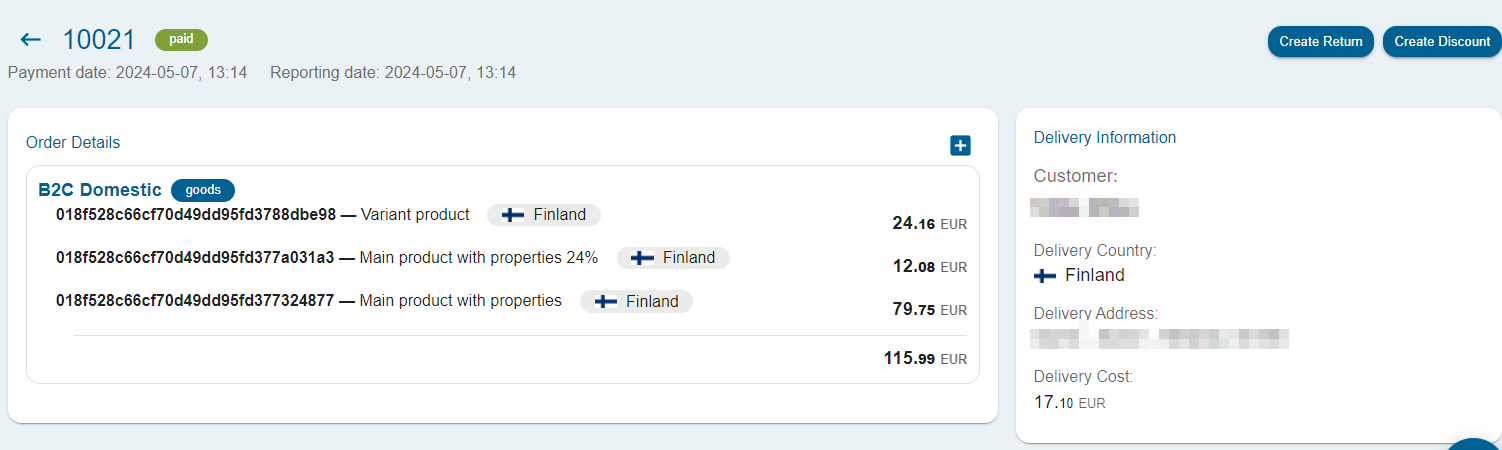
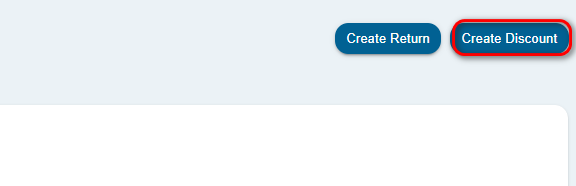
- In the upper right corner press "Create Discount"
- In the dialog window for each item provide the desired discount amount, either as a percentage or a fixed amount.
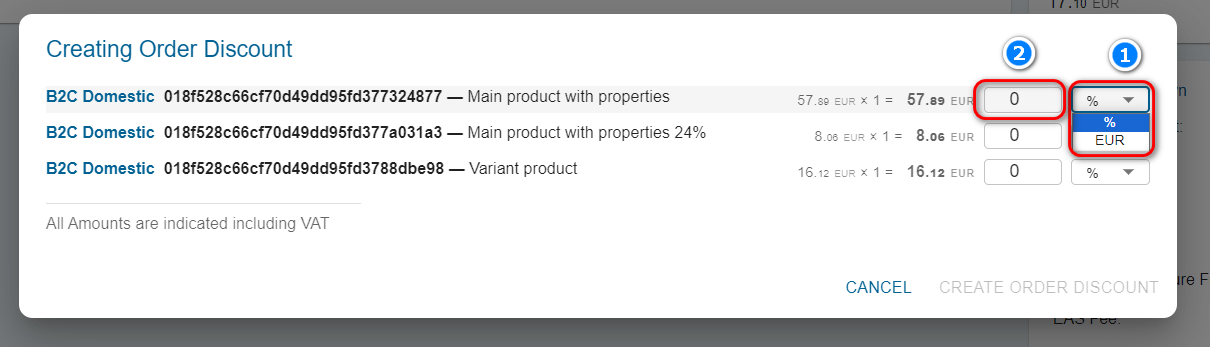
5. Press "Create order discount"
6. In the confirmation window Confirm the discount, and EAS will create the necessary fiscal entries.
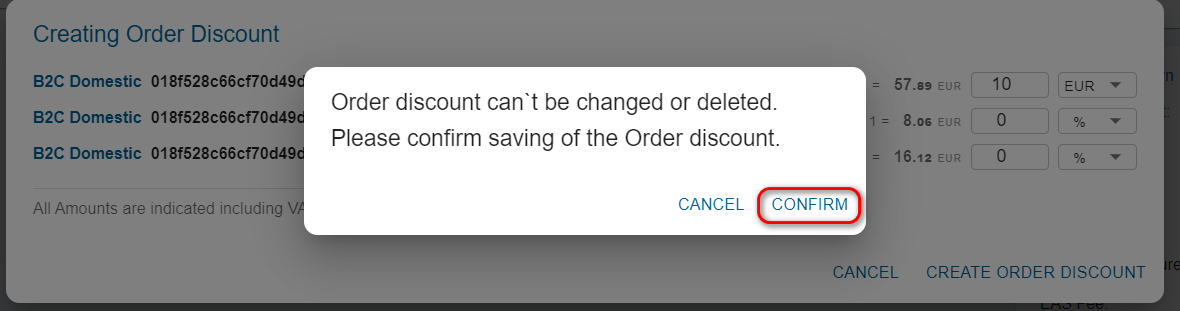
You can only create a post-sale discount for the item in the order once. If further reimbursements are required, you'll need to create a fiscal correction.
If the discount was applied in the same month as the original order, the corresponding VAT amount will be deducted from the monthly fiscal report. In cases where the discount is applied in the subsequent month, EAS will automatically create a correction entry for the post-sale discount VAT.
Remember to retain documentation, such as a copy of the order from your Shopify shop, to support the refund of the discount VAT.
3. Handling Double Payment of IOSS VAT
This situation can arise when postal operators, courier companies, or shipping aggregators mishandle data transfer or fail to provide the IOSS number or misrepresent the merchandise value in the shipped order. As a result, the customer is charged VAT twice, once at checkout and again at customs.
To manage the double payment of VAT follow these steps:
-
Identify the collected amount of VAT in the original order order
- Initiate a refund without return :
- Input identified VAT amount to be refunded, press "Refund sum " :
-
Make a manual correction in the EAS dashboard for the refunded VAT.
Follow this manual for the manual correction in the EAS dashboard : https://help.easproject.com/hc/en-gb/articles/5024009333407-How-to-correct-VATs-manually-in-EAS-dashboard